
 by
by I have rebuilt several systems lately, all of which are connected to a NetApp filer.
Reference Material:
Because I’m connecting to a NetApp filer, I made sure to reference TR-3749 NetApp and VMware vSphere Storage Best Practices for the appropriate settings. I am specifically referencing the settings in section 6 NFS Storage Recommendations on page 35.
After manually configuring the Advanced Settings for my first host, I decided I didn’t want to have to manually go through the process of updating these settings for each host.
Working Smarter:
So I put together a quick script to update the settings via the PowerCLI.
#***************************************************************************
#
# Update TCP and NFS Advanced Configuration Settings for vSphere
# Author: Jase McCarty
# Date: 1/15/2010
#
#***************************************************************************

$ESXHOST = Read-Host "Enter ESX Host Name or IP"
Connect-VIServer $ESXHOST

Write-Host "Updating TCP and NFS Advanced Configuration Settings"

# Update TCP Settings
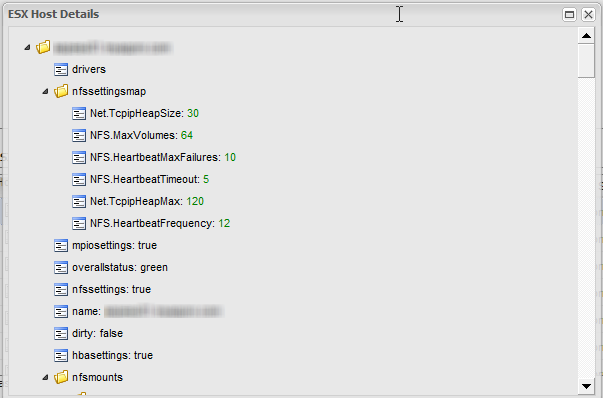
Set-VMHostAdvancedConfiguration -VMHost $ESXHOST -Name Net.TcpipHeapSize -Value 30
Set-VMHostAdvancedConfiguration -VMHost $ESXHOST -Name Net.TcpipHeapMax -Value 120

# Update NFS Settings (For ESX 3.5, MaxVolumes should be 32)
Set-VMHostAdvancedConfiguration -VMHost $ESXHOST -Name NFS.MaxVolumes -Value 64
Set-VMHostAdvancedConfiguration -VMHost $ESXHOST -Name NFS.HeartbeatMaxFailures -Value 10
Set-VMHostAdvancedConfiguration -VMHost $ESXHOST -Name NFS.HeartbeatFrequency -Value 12
Set-VMHostAdvancedConfiguration -VMHost $ESXHOST -Name NFS.HeartbeatTimeout -Value 5
Verification:
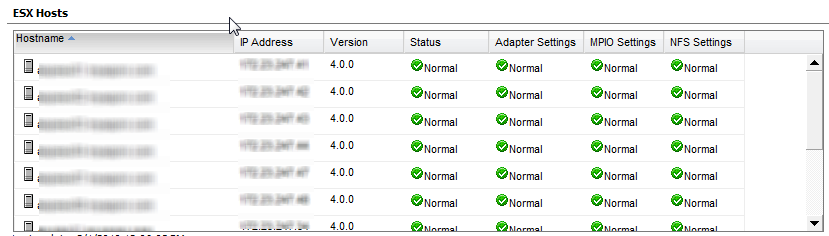
Once hosts are added into vCenter, the NetApp VSC confirms that all settings are correct.
 |
 |
Method to the madness:
This script is run against individual hosts, whether they are connected to vCenter or not. I chose to go this route, because I did not want to run a risk of updating a host that was already configured, and added to my vCenter installation.

Hi Jase.
I’ve noticed the URL for TR-3749 now references the July 2010 document and page 35 doesn’t reference the Advanced Settings. In fact I’m yet to find the settings in the document.
Cheers,
Darren.
I think that these settings are now updated by the VSC 2.0.
I’ll have to ping Vaughn about why they took the settings out TR-3749.
Thanks for the heads up.
Did you get any response to why the settings were removed?
Unfortunately no.
But using the local script on startup method resolves the issue.