
 by
by I saw Ivo Beerens’ blog post about using BGInfo and VMware View: Display the protocol used on the VMware View desktop background and it made me think of some of the scripts I’ve used. I figured I would share them.
I’ve used BGInfo for years, and have collected several scripts that I have used for various pieces of info that isn’t always the easiest to get from either the Windows registry or other places. When I worked for a Service Provider, it wasn’t uncommon to have systems spread across different Windows versions, multiple time zones, 64 or 32 bit, etc.
Here are some of the scripts I regularly used when I was an Administrator.
System Type – Displays the Hardware Manufacturer & Model Type
Const wbemFlagReturnImmediately = &h10
Const wbemFlagForwardOnly = &h20

'*** Connect to this PC's WMI Service
Set objWMI = GetObject("winmgmts:\\.\root\CIMV2")

'*** Query WMI for Hardware
Set items = objWMI.ExecQuery("SELECT * FROM Win32_ComputerSystemProduct", _
"WQL", wbemFlagReturnImmediately + wbemFlagForwardOnly)

For Each item In items
strSystemType = item.Vendor & " " & item.Name 'What we're after
Next

If Len(strSystemType) = 0 Then strSystemType = "Not Found in WMI"

echo strSystemType
Windows Version – Display the version of Windows
Const wbemFlagReturnImmediately = &h10
Const wbemFlagForwardOnly = &h20

'*** Connect to this PC's WMI Service
Set objWMI = GetObject("winmgmts:\\.\root\CIMV2")

'*** Query WMI
Set Items = objWMI.ExecQuery("SELECT Caption FROM Win32_OperatingSystem",_
"WQL", wbemFlagReturnImmediately + wbemFlagForwardOnly)

For Each Item In Items
strWinVer = Item.Caption 'What we're after
Next

'*** Clean up the text
strWinVer = Replace(strWinVer,"Microsoft","") 'strip off MSFT
strWinVer = Replace(strWinVer,"(R)","") 'strip off (R)
strWinVer = Trim(strWinVer) ' Remove leading/trailing spaces

If Len(strWinVer) = 0 Then strWinVer = "Not Found in WMI"

Set WSHShell = CreateObject("WScript.Shell")

If Right(ProductName,2) = "R2" Then
   strWinVer = Replace(strWinVer,", "," R2, ")
End If

Echo strWinVer
Time Zone – The Current Time Zone (with support for Daylight Saving Time)
Const wbemFlagReturnImmediately = &h10
Const wbemFlagForwardOnly = &h20

'*** Connect to this PC's WMI Service
Set objWMI = GetObject("winmgmts:\\.\root\CIMV2")'Dot is local computer

'*** Query WMI
Set Win32Computer = objWMI.ExecQuery("SELECT * FROM Win32_ComputerSystem")

For Each Item In Win32Computer
DaySave = Item.DaylightInEffect
Next

Set Items = objWMI.ExecQuery("SELECT * FROM Win32_TimeZone")

For Each TimeItem In Items
   DayDST = TimeItem.DaylightName
   DaySTD = TimeItem.StandardName
Next

If DaySave <> "True" then
   DST = DaySTD
Else
   DST = DayDST
End If

Echo DST
x64 – Display whether a system is 64-bit or not
Set WshShell = CreateObject("WScript.Shell")
Set WshSysEnv = WshShell.Environment("System")

If WshSysEnv("PROCESSOR_ARCHITECTURE") = "AMD64" then
   Echo "64-bit System"
Else
   Echo "32-bit System"
End If
GetNotes – Read the contents of a file named C:\notes.txt so I can display whatever I wish
*I typically would put the role of the server, or any nuances of the application in this file
Set objFS = CreateObject("Scripting.fileSystemObject")
if objFS.FileExists("C:\notes.txt") Then
   strNOTES = "Notes:" & vbcrlf
   Set objIN = objFS.OpenTextFile("C:\notes.txt",1)

   'Read everything in an array
   inputData = Split(objIN.ReadAll, vbNewline)

   For each strData In inputData
      strNOTES = strNOTES & strData & vbcrlf
   Next

   objIN.Close
   Echo StrNotes
End If
Set objFS = Nothing
Mac Address – Read the Mac Address of adapters with IP enabled
Const wbemFlagReturnImmediately = &h10
Const wbemFlagForwardOnly = &h20

'*** Connect to this PC's WMI Service
Set objWMI = GetObject("winmgmts:\\.\root\CIMV2")

'*** Query WMI
Set Win32MacAddr = objWMI.ExecQuery("SELECT * FROM Win32_NetworkAdapterConfiguration Where IPEnabled = True")

For Each Item In Win32MacAddr
   MacAddr = Item.MACAddress
Next

Echo MacAddr
As Of Date – A little script to return when this BGInfo script was last run
strResult = formatDatetime(Date()) & " @ " & formatDatetime(Time(),3)

Echo strResult
And some new ones I created after seeing Ivo’s blog post.
View Broker – Display some View Broker info
Set wshShell = CreateObject ("Wscript.Shell")

echo "Broker: " & wshShell.ExpandEnvironmentStrings ("%ViewClient_Broker_DNS_Name%")
echo "Domain: " & wshShell.ExpandEnvironmentStrings ("%ViewClient_Broker_DomainName%")
echo "Remote IP: " & wshShell.ExpandEnvironmentStrings ("%ViewClient_Broker_Remote_IP_Address%")
echo "Tunneled: " & wshShell.ExpandEnvironmentStrings ("%ViewClient_Broker_Tunneled%")
echo "Tunnel URL: " & wshShell.ExpandEnvironmentStrings ("%ViewClient_Broker_Tunnel_URL%")
echo "URL: " & wshShell.ExpandEnvironmentStrings ("%ViewClient_Broker_URL%")
View Client – Display some View Client info
Set wshShell = CreateObject ("Wscript.Shell")

echo "View Client Username: " & wshShell.ExpandEnvironmentStrings ("%ViewClient_Broker_UserName%")
echo "View Client IP Address: " & wshShell.ExpandEnvironmentStrings ("%ViewClient_IP_Address%")
echo "View Client LoggedOn Domain: " & wshShell.ExpandEnvironmentStrings ("%ViewClient_LoggedOn_Domainname%")
echo "View Client LoggedOn Username: " & wshShell.ExpandEnvironmentStrings ("%ViewClient_LoggedOn_Username%")
echo "View Client Machine Name: " & wshShell.ExpandEnvironmentStrings ("%ViewClient_Machine_Name%")
echo "View Client MAC Address: " & wshShell.ExpandEnvironmentStrings ("%ViewClient_MAC_Address%")
echo "View Client Protocol: " & wshShell.ExpandEnvironmentStrings ("%ViewClient_Protocol%")
echo "View Client Type: " & wshShell.ExpandEnvironmentStrings ("%ViewClient_Type%")
echo "View Client Timezone: " & wshShell.ExpandEnvironmentStrings ("%ViewClient_Windows_Timezone%")
View Client Logged On As/From – Display only who/where a user is logged on from, and with what protocol
Set wshShell = CreateObject ("Wscript.Shell")

echo "Logged on as " & wshShell.ExpandEnvironmentStrings ("%ViewClient_LoggedOn_Domainname%") & "\" & wshShell.ExpandEnvironmentStrings ("%ViewClient_LoggedOn_Username%")
echo "From " & wshShell.ExpandEnvironmentStrings ("%ViewClient_Machine_Name%") & " using " & wshShell.ExpandEnvironmentStrings ("%ViewClient_Protocol%")
echo wshShell.ExpandEnvironmentStrings ("%ViewClient_Windows_Timezone%")
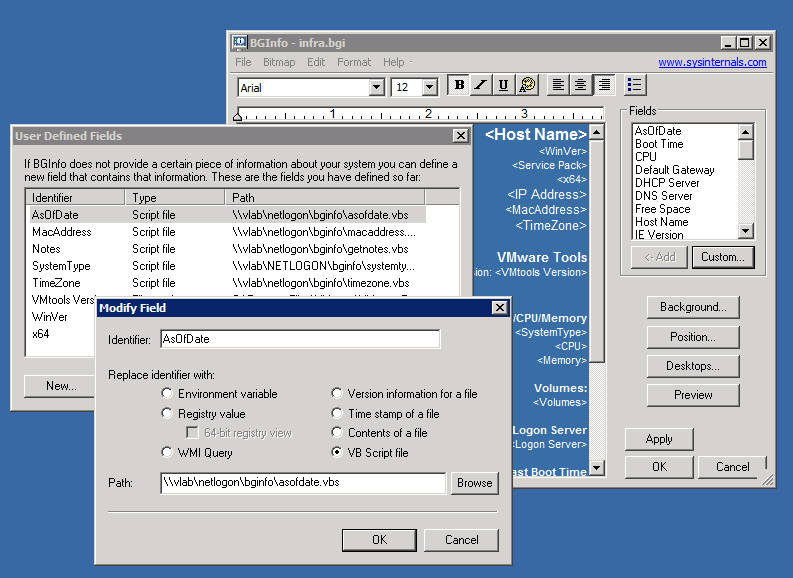
To add any of these as an available option in BGInfo, it is pretty straightforward. Just follow these steps:
- Click Custom
- Click New
- Enter the Indentifier
- Select VB Script file
- Enter the path to the vbs
- Click Ok
- The new Identifier is available in the Fields selection window
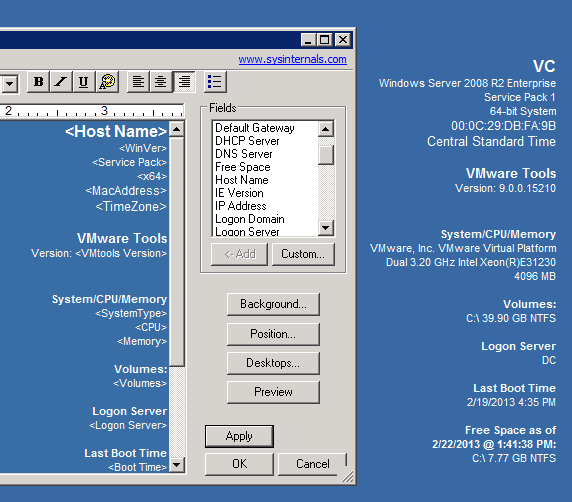
Here is a resulting BGInfo execution on the vCenter Server in my lab:
I hope they are useful to others as they have been useful to me.
Just a disclaimer… I haven’t tried any of these on Windows 2012…
Cheers,
Jase
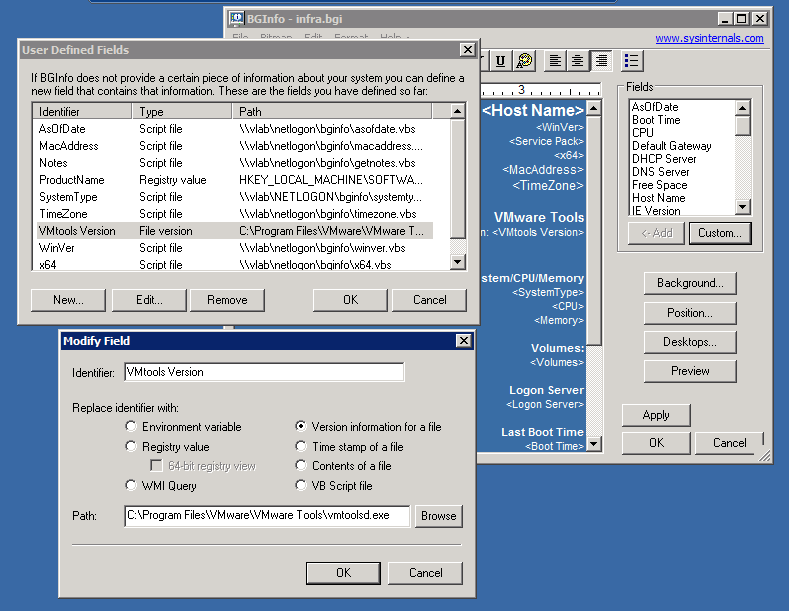
Update: In the comments section, Alexandru asked for how I was pulling the VMware Tools version. I’m simply pulling a file version from the vmtoolsd.exe executable.

Hi,
Nice post, and couple scripts are very useful. BTW, where did you get the script with VMware Tools? I would like to have one.
Thanks.
I just did a file version check on the VMtools executable.
I’ll post the BGinfo settings when I get an opportunity…
Thanks,
Jase
Alexandru,
I’ve updated the post with how I’m getting the VMware Tools information.
Thanks,
Jase
Great post and very helpful!
I’ve discovered a problem, however. I am running with VMware AutoDeploy Stateless ESXi hosts. It appears that one cannot add the isilon_nas_vaai_plugin to a Image Profile and have it successfully install as one can with the EMC VNX NAS Plugin. I run 52 hosts that are all ready to get into the fun with Isilon–but none of them can load the Isilon plugin since they boot stateless.
Is there any chance the Isilon team will fix the plugin to behave more like the EMCNASPlugin we use for VNX arrays? If not, my Isilon cluster will have to be sent back.
Thanks,
Chris
Chris,
I ran across this issue as well.
I have asked if AutoDeploy will be an option at some point.
I haven’t heard anything back, but will let you know if I hear anything.
I’d submit a support ticket, just to get some documentation in place.
I know of a small workaround when it comes to auth_gen, but it still doesn’t get the plugin installed.
If I run across a complete workaround, I’ll let you know.
Thanks,
Jase
Is there a way to use a VB Script to show the current date in this format:
January 1, 2013
All I can find to display is “1/1/2013”.
Thank you.
You’ll have to do a little work, but this works:
Hope that helps.
Jase
I have a workstation set to UTC time, but I want to add another entry to show local time too…how can I do this?
I would create a new variable, grab the UTC time, and then display it.
I’m trying to copy your “GetNotes” code to grab text from my host file, but keep on getting an error on the Echo strNOTES portion. It gives me a Type mismatch: ‘Echo’, Code 800A000D.
I’m not that familiar with VBS, so any tips?
Thanks!
Unfortunately I don’t have a Windows environment setup right to test it.
I’ll have to get back to you.
@Michael
I read on another site that when using VB in BGInfo you need to use just Echo instead of Wscript.Echo. Even though it will error out in an app like PrimalScript, it will work in BGInfo.
does anyone have a script to show the Department a user is connected to in AD
Option Explicit
Dim WshNetwork
Dim UserName
Dim objADSysInfo
Dim strUserName
Dim objUser
Dim strDepartment
Set WshNetwork = CreateObject(“WScript.Network”)
UserName = WshNetwork.UserName
Set objADSysInfo = CreateObject(“ADSystemInfo”)
strUserName = objADSysInfo.UserName
Set objUser = GetObject(“LDAP://” & strUserName)
strDepartment = objUser.Department
Echo strDepartment
Dear Team,
Could you please provide me script to get Host – IP Address?
-Mohan
I’m assuming that you are asking for the IP of the vSphere host the VM’s are residing on.
I think that might be a little more complicated.
I wonder if anyone over at VMTN.net has a script for that.
Hi jase,
i try to display vlan name in my desktop by comparing default gateway
I have a two network, both having different default gateway.
By gateway we have to display name in desktop.
ex. if defaultgateway is 192.168.1.5 Finance_vlan
if defaultgateway is 192.168.2.5 HR_vlan
please help on this, is this possible?!
You would have to have a custom script query the NICs, pulling that information, and passing it to BGinfo.
I don’t have a Windows desktop (or any desktop that has multiple VLAN assignments) to test this, sorry.
Boa tarde a todos.
É possível inserir calendário no BGInfo ? como fazer?
You would have to have a custom script execute and then return that information to BGinfo.
Hi Jase,
Great blog thanks for the vb scripts. I have been using BgInfo for years in a few schools i work with its great for displaying PC info.
I have tried but have been unsuccessful with WIM query or registry to try and display if office is Activated and if windows is Activated.
Any chance you would have 2 vb scripts that could display this info in Bginfo. I know office has ospp.vbs and windows slmgr.vbs but i cant get them to work for bginfo.
Thanks
Unfortunately I don’t. I haven’t worked on these scripts in some time.